HeiConnect is a research prototype, in closed beta, for researchers at Universität Heidelberg and its affiliated institutes. It does two things. It finds you funding and people: every open funding call and prize you could apply to, ranked for your work, and the colleagues whose research sits next to yours. And it gets a proposal from idea to submission: a workspace built on the funder's own outline, with the writing guides, references, figures, checks and export you need to hand a finished file to your research office.
Three things it deliberately does not do. It never rules on eligibility; your research office does that. It never sends anything to a funder; you do. And it never sends your text to an AI provider; if you want an assistant, you bring your own, and the text goes where you choose.
Quick start
Five steps, about five minutes. Everything after this section is the full tour.
- Register with your institutional e-mail, then link your ORCID iD on the verification page. A known researcher is verified on the spot.
- On your profile, write two sentences of research statement and add a few keywords. This is what turns the call list into a ranking for you.
- On the dashboard, answer the three questions above Funding calls for you: what you need funding for, when, how much.
- Open a call that fits, read its key information, and press Save or Start a proposal.
- Optional: switch on the weekly digest under Notifications, so the calls come to you.
What's inside
Researchers. Every person is built from public scholarly records: OpenAlex, ORCID, Crossref, GEPRIS, CORDIS, DataCite and Zenodo, heiDOK and the DNB. Each record is shown with where it came from. Nothing behind a login is ever read, and anyone can opt out of appearing at all.
Funding calls and prizes. Calls are collected daily from several dozen sources: the DFG, the federal ministries, the EU's funding portal, foundations, state programmes, industry and institutional schemes, and US federal agencies. Each call carries its deadline, amount, eligibility, the documents the funder asks for, and where we can find them, the projects that funder has paid for before. Prizes and awards sit in the same list, on their own tab.
Guides and templates. A library of proposal templates, writing guides and checklists for German, EU, foundation and international funding, in English and German. The right ones are recommended on every call page and inside every proposal.
Your own things. Your profile, saved calls, proposals in flight, bookmarked people and teams. All of it lives separately from the public research data and can be exported or deleted at any time.
Create your account
- Go to Register. Registration is limited to institutional e-mail domains; the form tells you which. If ORCID sign-in is enabled you can also sign up with your ORCID iD directly.
- Your account starts as pending. Everything except a few public pages, this one included, waits until it is verified.
- On Verify your account, link your ORCID iD. If it matches a researcher we already know, you are verified on the spot. If not, an administrator reviews the account by hand; you will be able to log in once that is done.
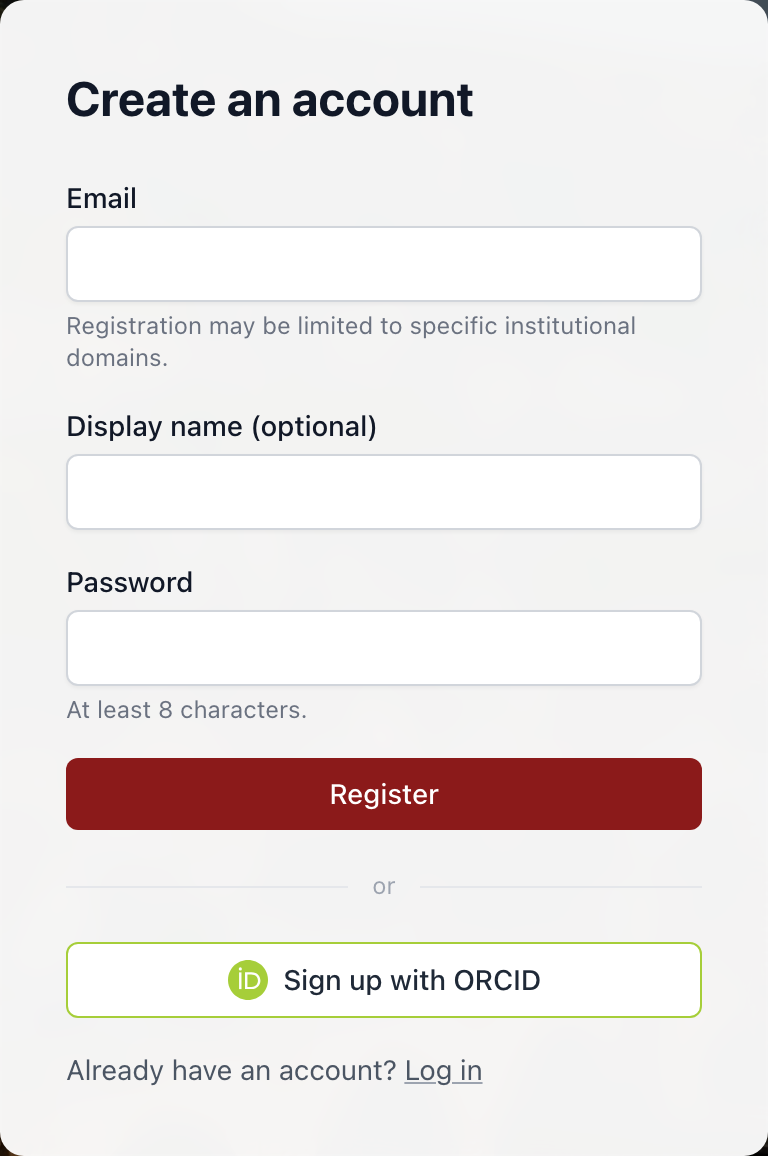 Institutional e-mail, display name, password.
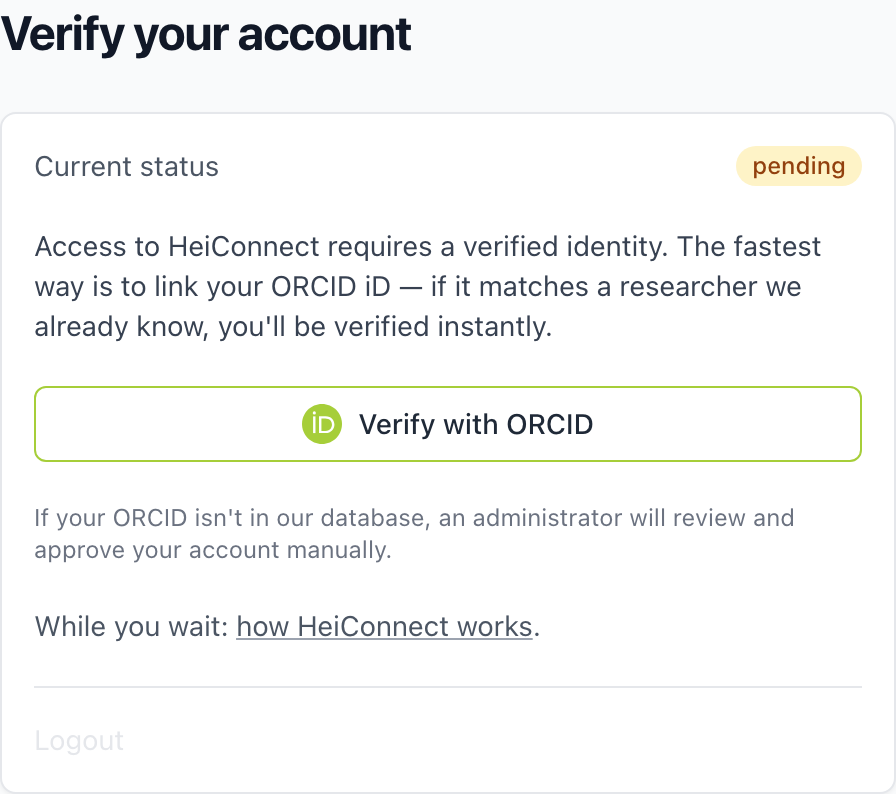 Link your ORCID iD, or wait for an administrator.
Five-minute profile
Everything personal is on one page, your profile, in four groups. Each group shows in one line what it currently holds. Fill in the second group first; the rest can wait.
Profile. Your display name and the link to your public researcher page. Linking your ORCID is what proves the link, and a verified link is what lets you edit that public page and publish documents on it.
Matching. This is the part that matters. A short research statement and a handful of keywords are what turn the call list from "soonest deadline first" into "best fit for you first". Until they exist, the dashboard says so plainly and orders by deadline instead. You can also upload a CV: overnight, HeiConnect reads it and proposes keywords, a career stage and a public summary, each of which you accept or reject. Prior proposals you have written, funded or not, go here too, so a later draft can reuse your own wording.
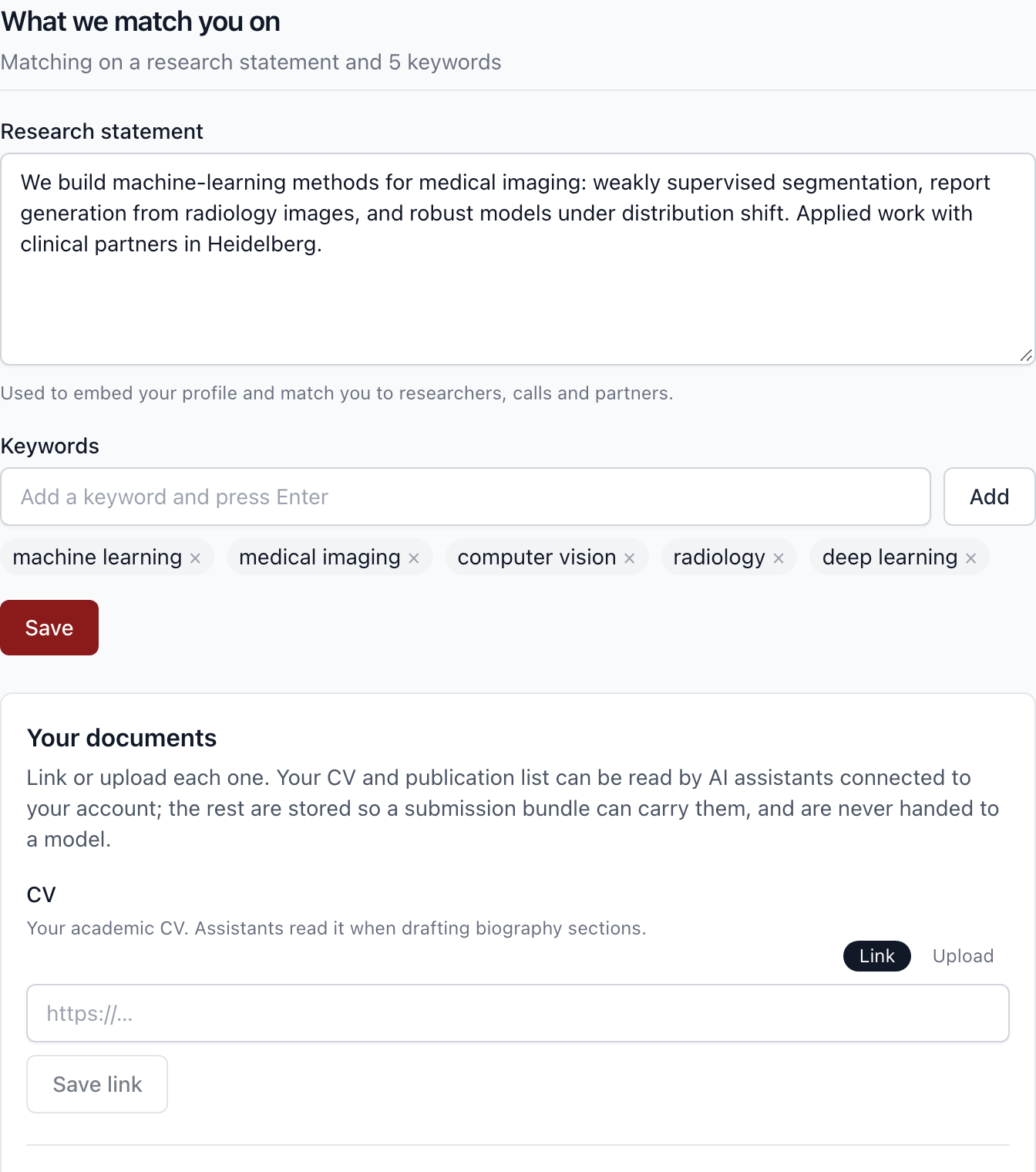 Statement and keywords: two sentences and five words are enough to start.
Notifications. An optional weekly digest e-mail with the calls that fit you, and a calendar feed of the deadlines you saved.
AI assistants. The token that lets an AI assistant of your choice work on your proposals. Covered in its own section below.
Your dashboard
Once verified, the front page is your dashboard. Top to bottom:
- Proposals in flight, with days to deadline.
- Similar researchers: people whose work sits closest to yours, with the topics you share. Toggle cross-domain to look outside your own field, and Home / All to include or exclude institutes other than your own.
- Funding calls for you: the whole applicable corpus, ranked. Three questions above the list (what you need funding for, when, how much) sharpen the order; they never remove a call.
- Complementary partners for a call you have chosen from its own page.
- Worth a look: partners from other fields, each with a one-line reason and a "reach out" link.
Every suggestion card has a small × that means "don't show this again": not this person, or not this field. That choice can be undone from your profile.
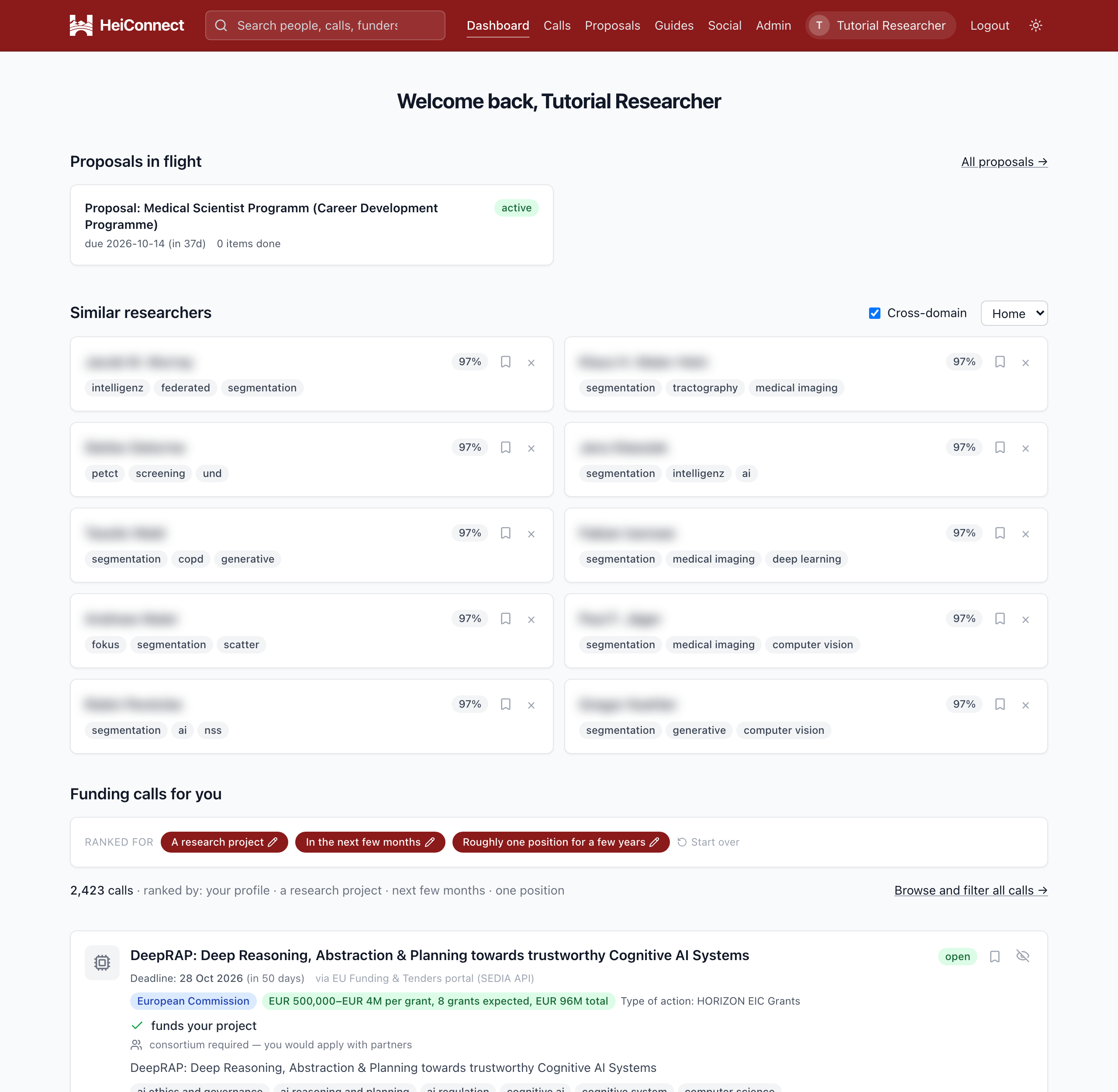 Similar researchers, then the ranked calls. People's names are blurred in every picture of this tutorial; on the site you see them.
Find funding
Calls is the full list, calls and prizes on two tabs. Above the list:
- Filters: topic tags (include or exclude), career stage, funder, amount, scope, route, and deadline windows such as "closing within 90 days". By default the list hides calls that are known not to be open to researchers in Germany; one switch shows everything.
- Sort: best fit for you, newest first, or largest amount first. The line under the filters always says what the order is built from.
- Save a call to come back to it; hide one you never want to see again. Saved calls wait for you on the Proposals page.
- Submit a call you found elsewhere. It is checked and added overnight, usually within a day or two.
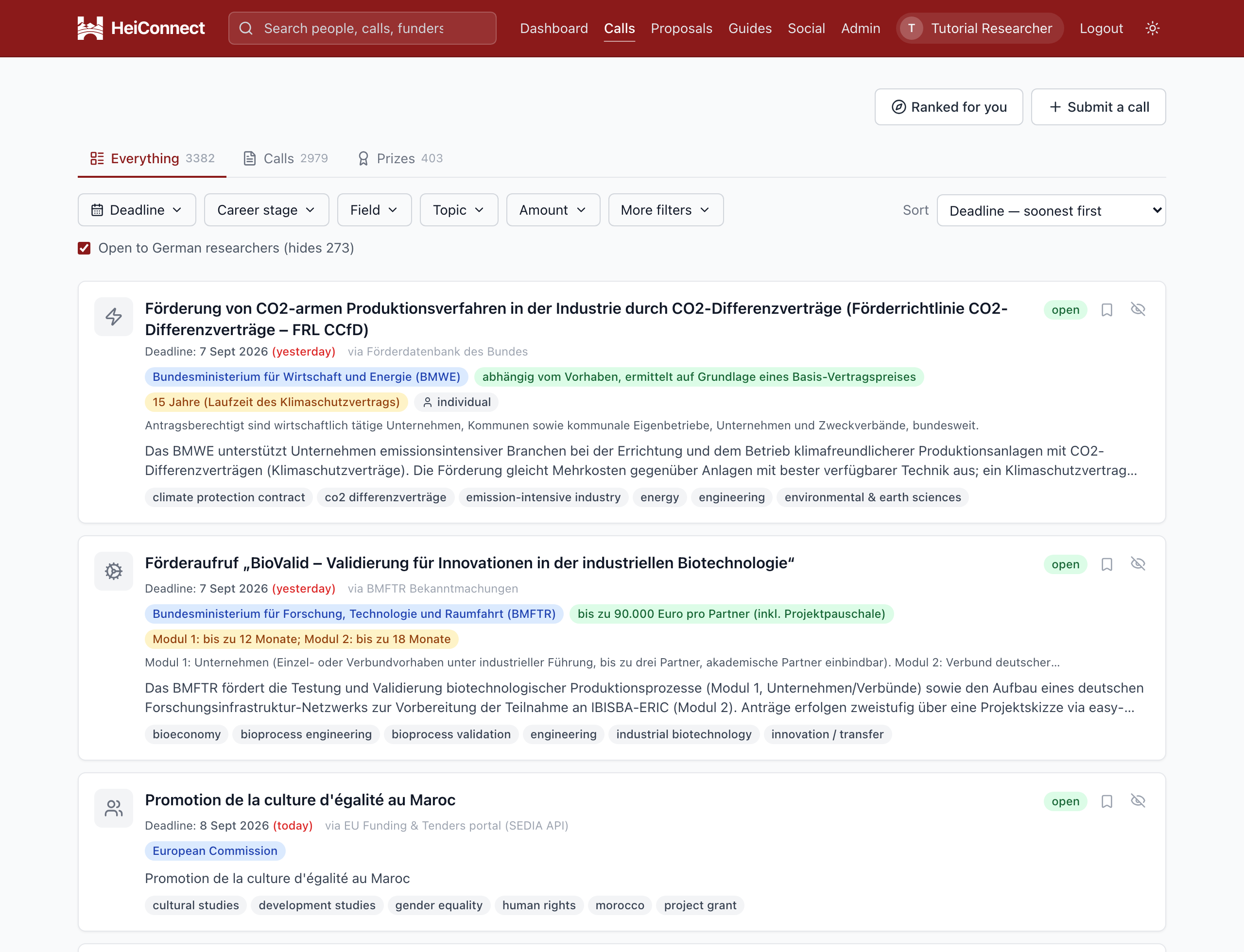 Calls and prizes, filters, sort, save and hide.
AnimationTick a topic, save a call, and it waits under Proposals.
Ranked for you (/calls/finder) is the same corpus on a page of its own, with the three questions in front. Answer them once; the answers are remembered and used on the dashboard too. Answering reorders the list. It never shortens it.
AnimationWhat for, when, how much: three clicks, and the order changes.
Read a call
A call page is everything we know about one opportunity, in a fixed order:
- Key information: deadline, amount, duration, eligibility, funder, source, with the original call linked.
- Full call text and the funder's documents, including the list of documents the funder requires from you.
- Funded precedents: projects this funder has paid for before, when we have them.
- Recommended guides from the library, matched to this funder and grant type.
- Draft "why us" bullets: your profile held against the call's requirements.
- Team finder, on calls that need a consortium: complementary partners with you fixed as lead, or a search for a lead when you want to join. Solo calls skip it.
- Assess this call with your AI assistant, and Start a proposal.
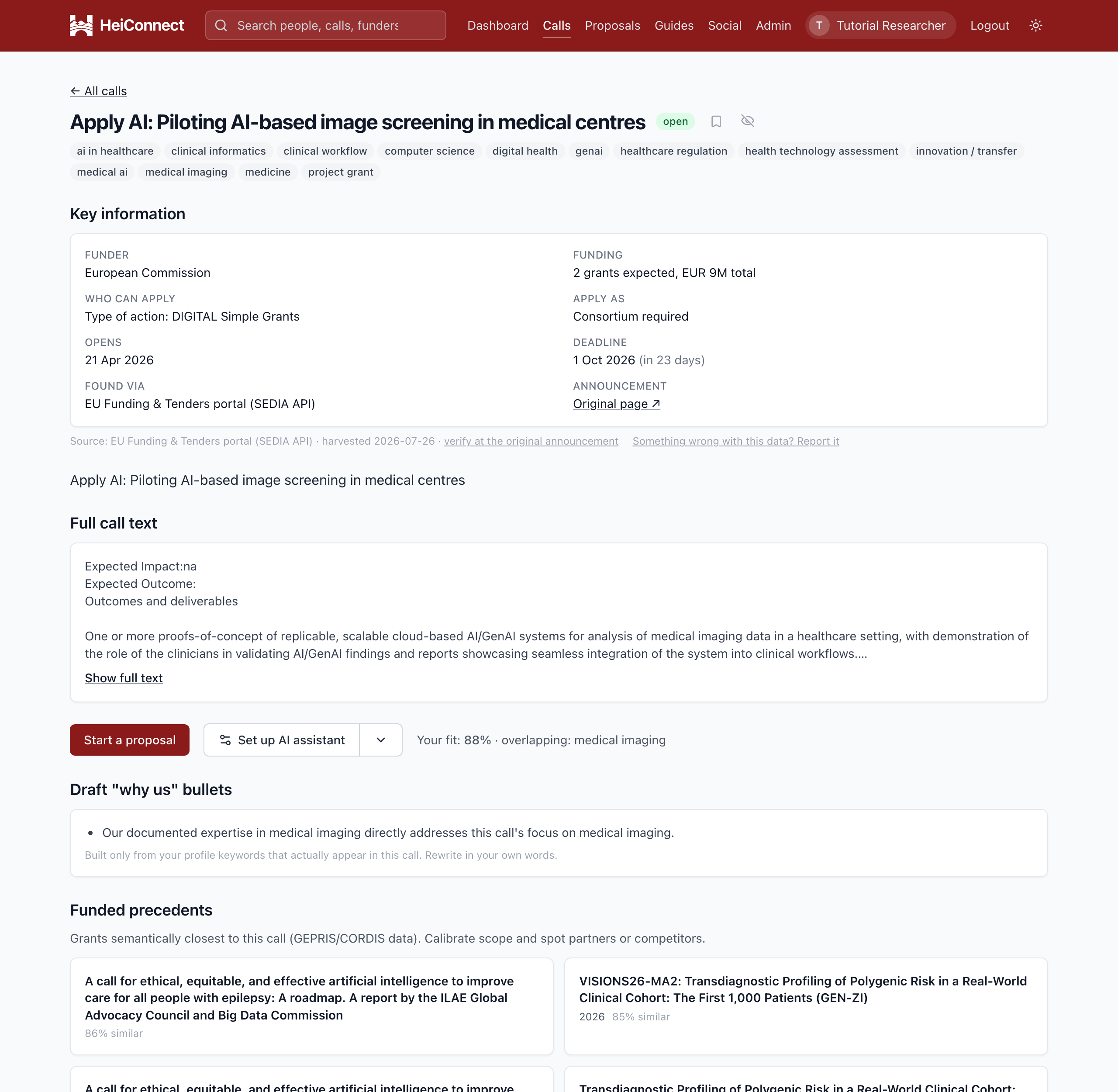 Key information first, then the text, documents and precedents.
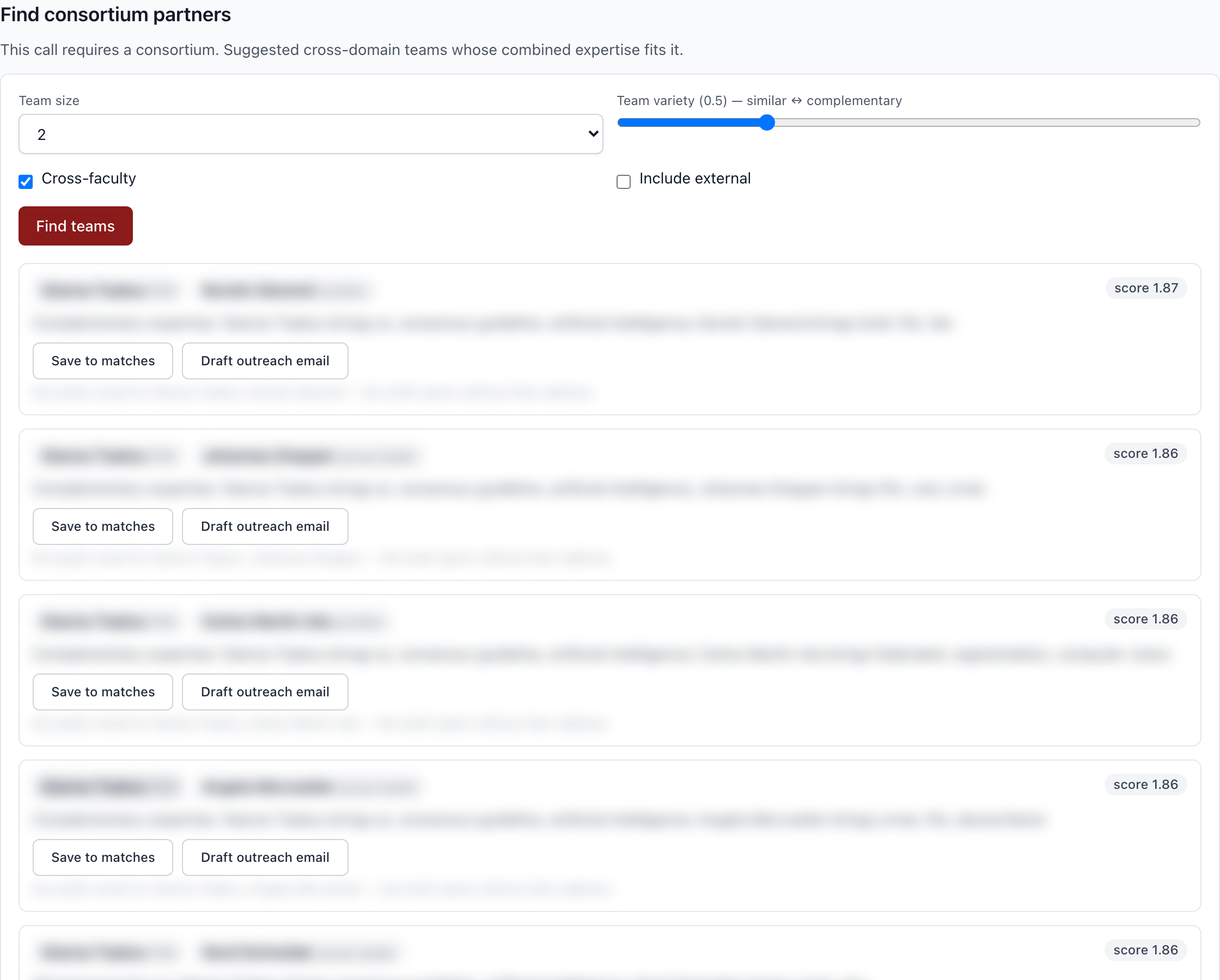 Suggested teams with you as lead, each with a reason and an outreach draft.
Find people
The search box in the header works on every page. As you type it offers researchers, calls, funders, guides and your own proposals; pick one to jump straight there, or press Enter for the full search page with facets: home institutes or all, faculty, career stage, years.
AnimationSuggestions appear as you type; pick one to jump there.
A researcher page shows their topics, how those topics moved over the years, their most-cited items, their collaborators and their career stages, each with its source. From there you can save the person, or reach out: a prefilled e-mail draft when we have a public address, otherwise an intro text you can copy.
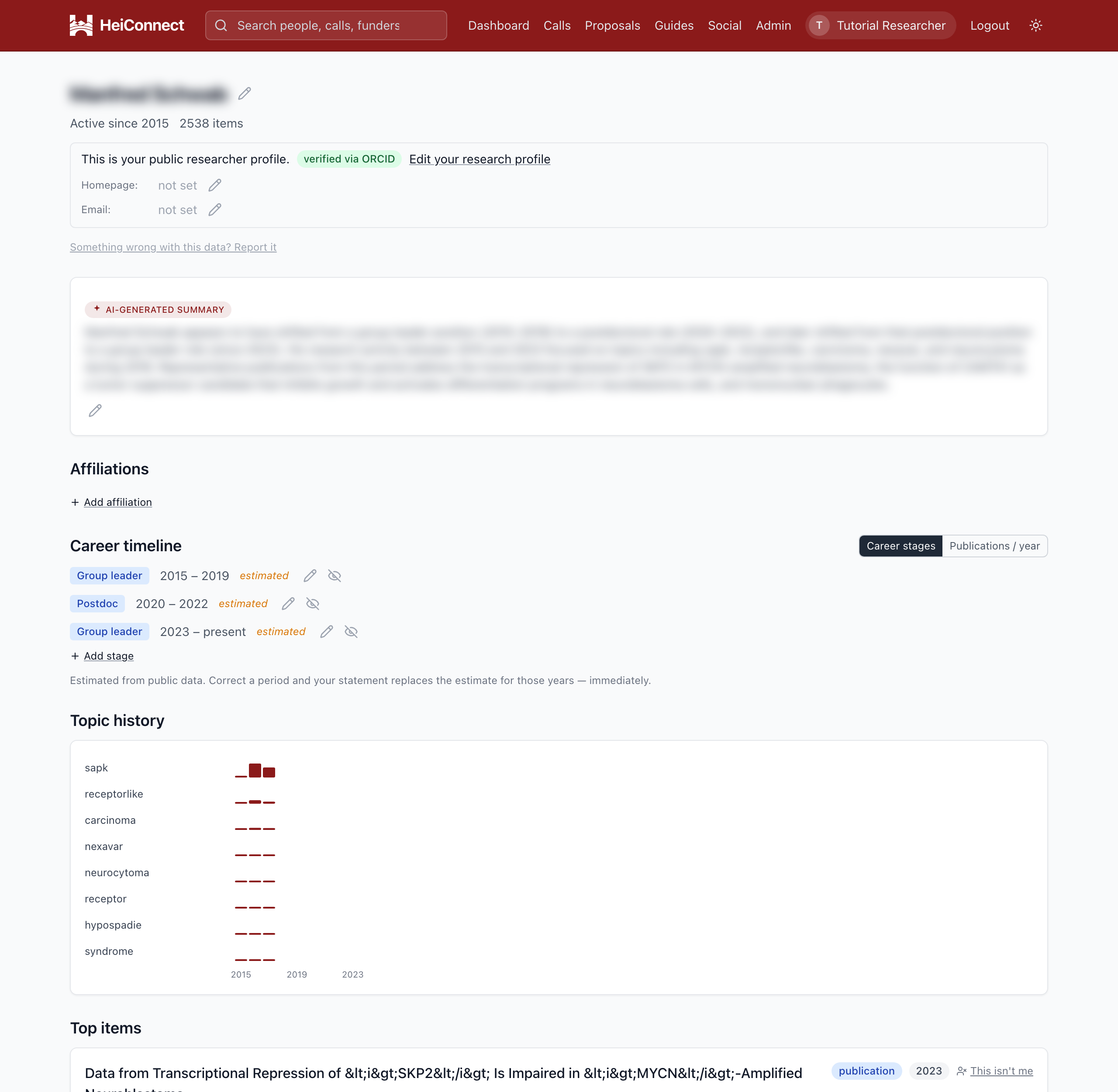 Summary, career timeline, topic history, top items.
Write a proposal
Proposals lists every run at a grant: active, saved but not started, submitted, and dropped. Start one from any call page, or from the instrument wizard if you have an idea but no target call yet.
AnimationStart a proposal, open a section, type: it saves as you go.
The workspace opens on the spine: the funder's own outline, one section per required part, as an editor with autosave and a full revision history per section. Around it, panels you can show or hide:
- Facts: the numbers and names the whole proposal must agree on.
- Review findings and the Checklist: what a panel would flag, and what is still open.
- Timeline, References (cite as
[@key]and the export resolves it), and Figures (upload or paste, embed by reference). - Team finder and Guides, the same ones as on the call page.
- Submit: pre-flight checks, the export as a Word or PDF file in the funder's template, and, for calls that are submitted by e-mail, a prepared message you send yourself. HeiConnect never sends it for you.
- Notes: decisions and open questions, the memory of your working sessions.
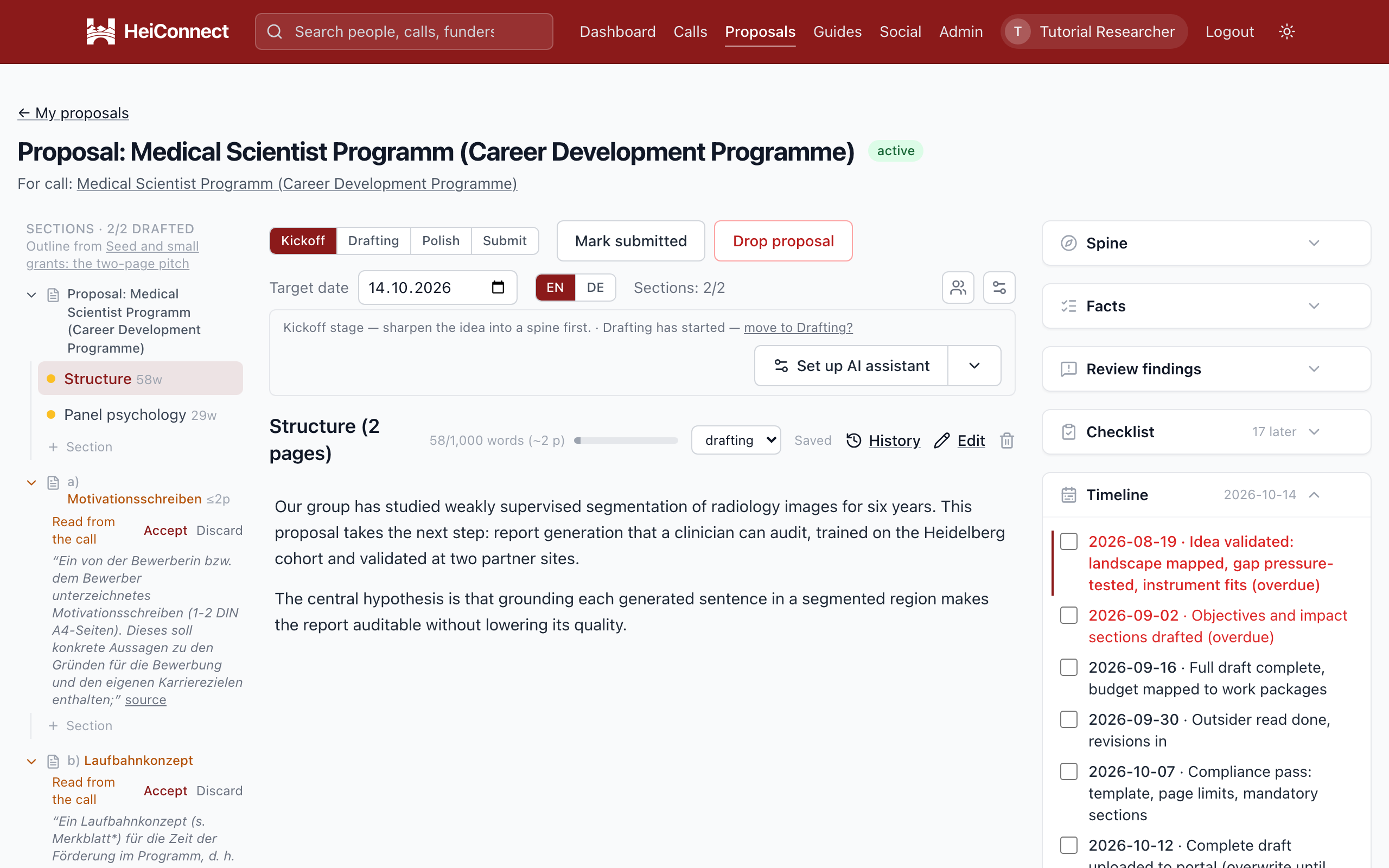 The spine on the left, the section in the middle, panels on the right.
Proposals can be written in English or German, shared with collaborators who see each other's presence, and, months later, the page will ask once whether you heard back.
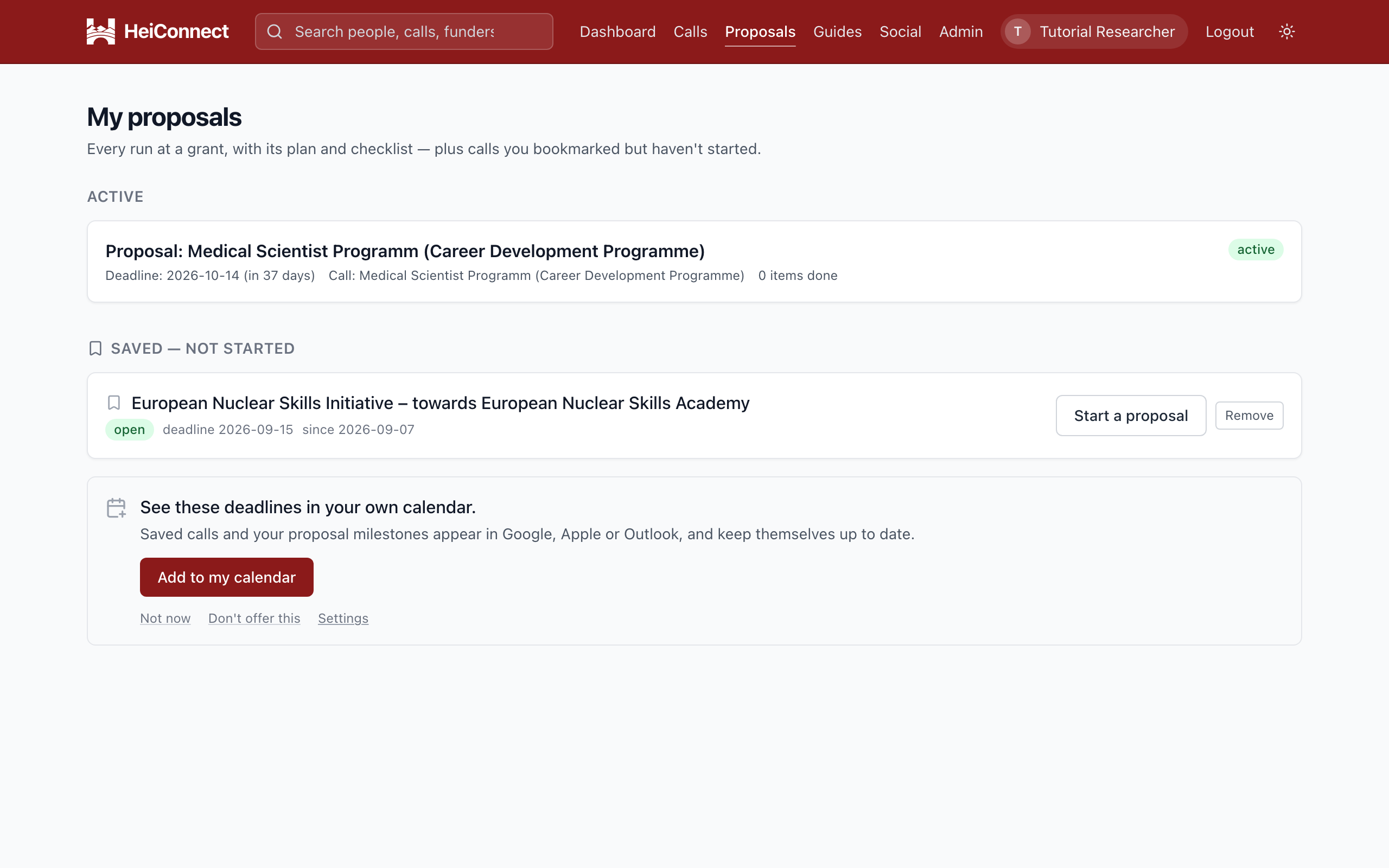 Active, saved but not started, submitted, dropped.
Work with an AI assistant (optional)
You can let an assistant you already use read and write your proposals: Claude, ChatGPT, or a model running on your own laptop. HeiConnect holds no AI credentials and calls no AI provider. It speaks an open protocol those assistants understand, so the text goes only where you point it. With a local model, nothing you write leaves your machine and HeiConnect.
- On your profile, under AI assistants, enable assistant access. You get a token and a ready-made configuration block.
- Follow Connect an AI assistant for your client. It is one URL and one header.
- On any call or proposal, use the single Work with AI launcher. It offers named sessions, grouped into plan, write, check and finish: orient and plan, sharpen the idea, structure the narrative, draft a section, build the budget, run a panel review, judge readiness, pre-flight the submission. Each opens your assistant with the right briefing, or copies it for you to paste.
AnimationOne launcher, grouped sessions; pick one and the briefing is copied.
Whatever the assistant writes lands in the workspace as sections, so export, pre-flight, review and your collaborators all see the same text.
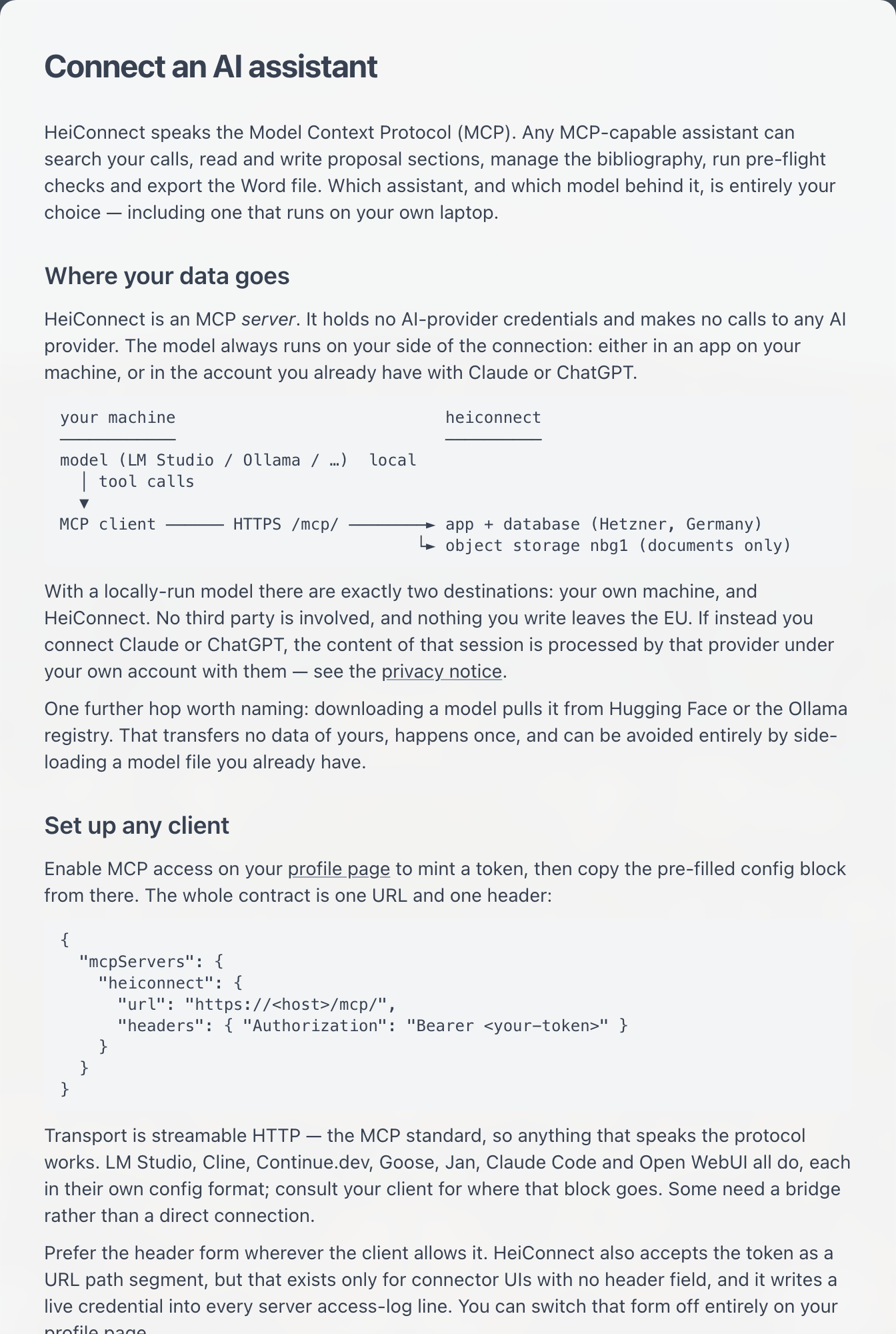 Where your text goes, and the one URL and header every client needs.
Guides and the instrument wizard
The grant-writing library holds templates, guides and checklists, filterable by grant type, many in English and German pairs. Checklists can be ticked off as you work. The instrument wizard asks five questions and answers with the best-fitting instruments, their templates, and the open calls to target, with the scoring shown.
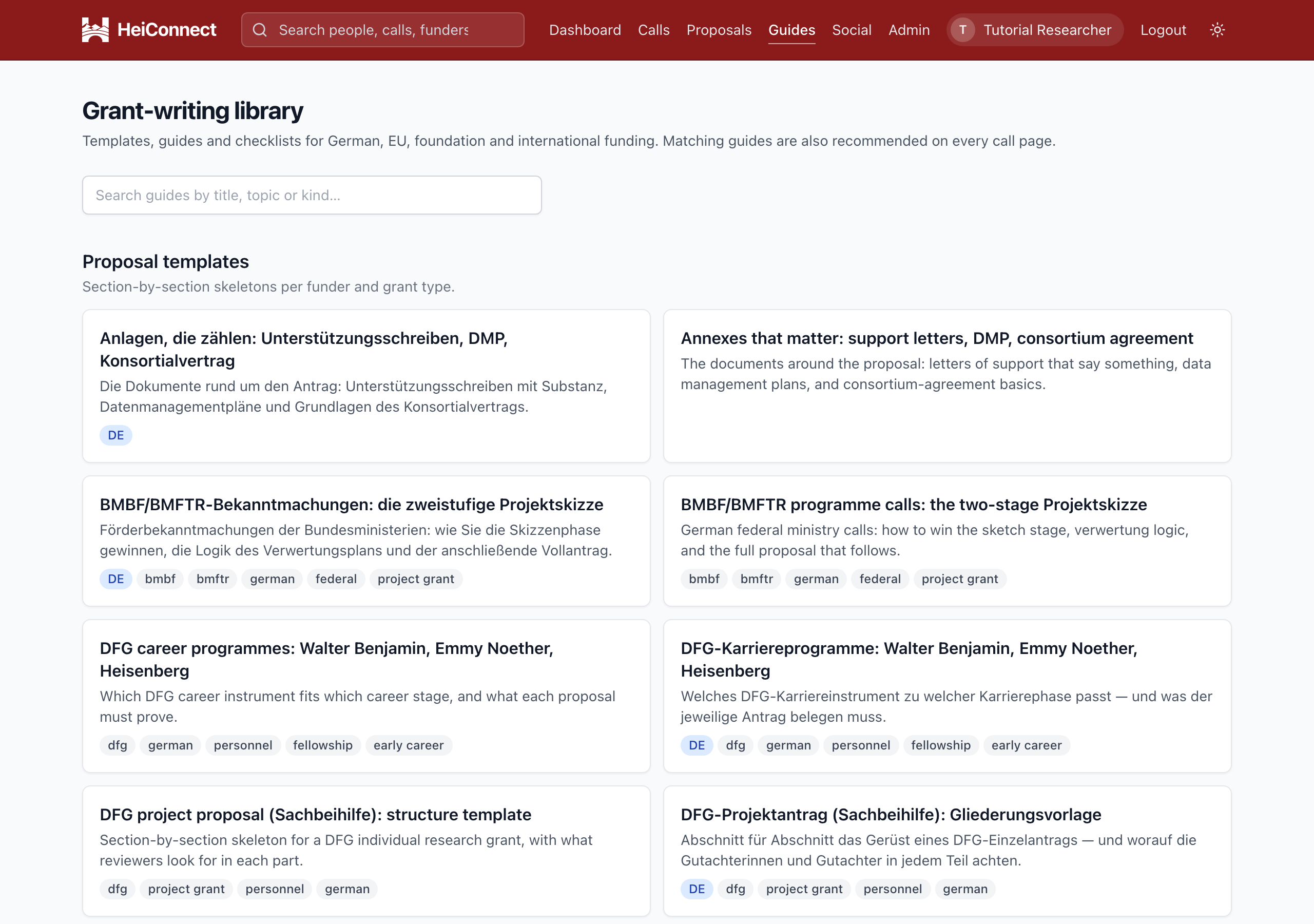 Templates, guides, checklists.
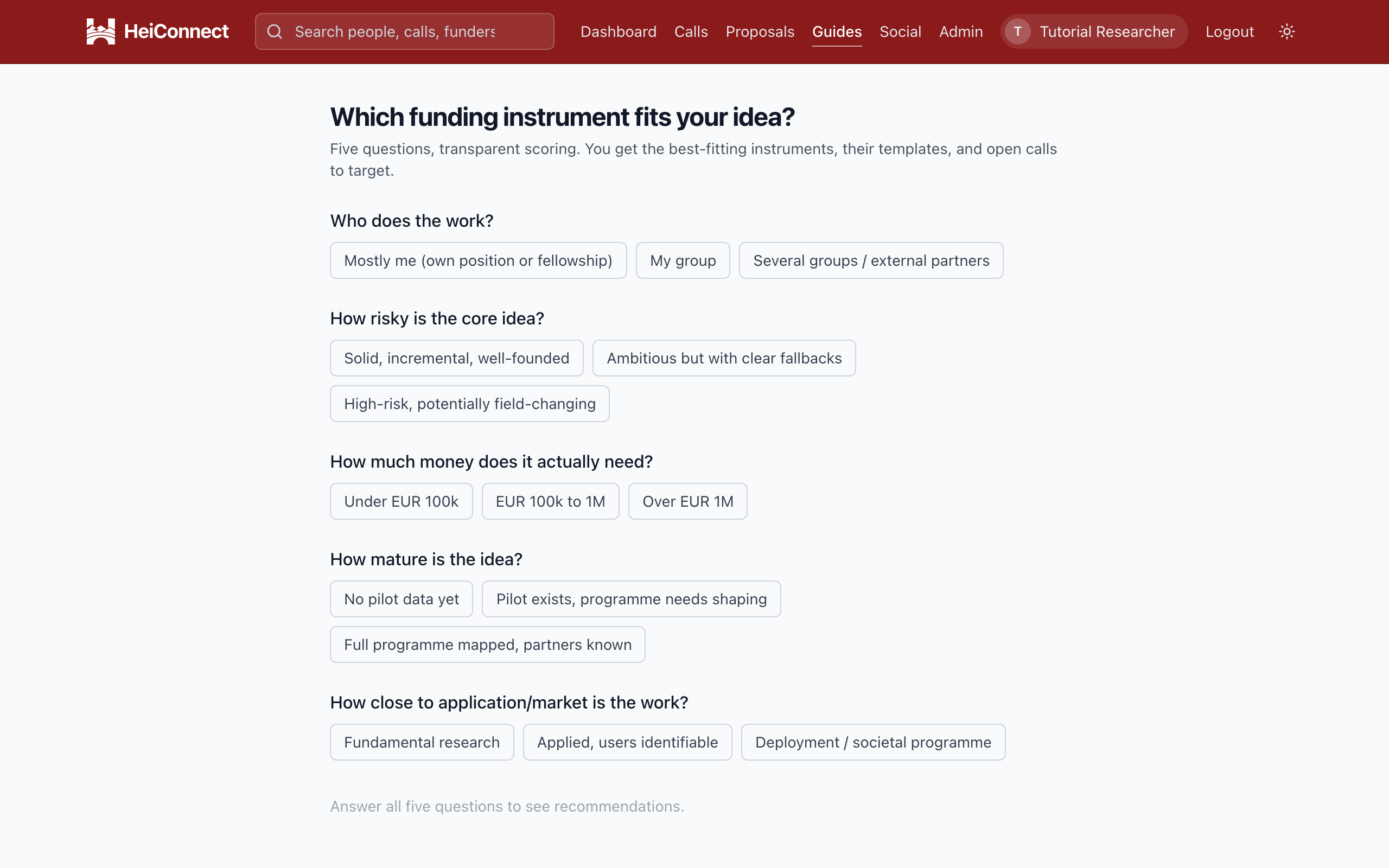 Five questions, transparent scoring.
People you saved
People gathers the people you saved: the teams you shortlisted for a funding call, and the researchers you bookmarked. Events have their own Events tab.
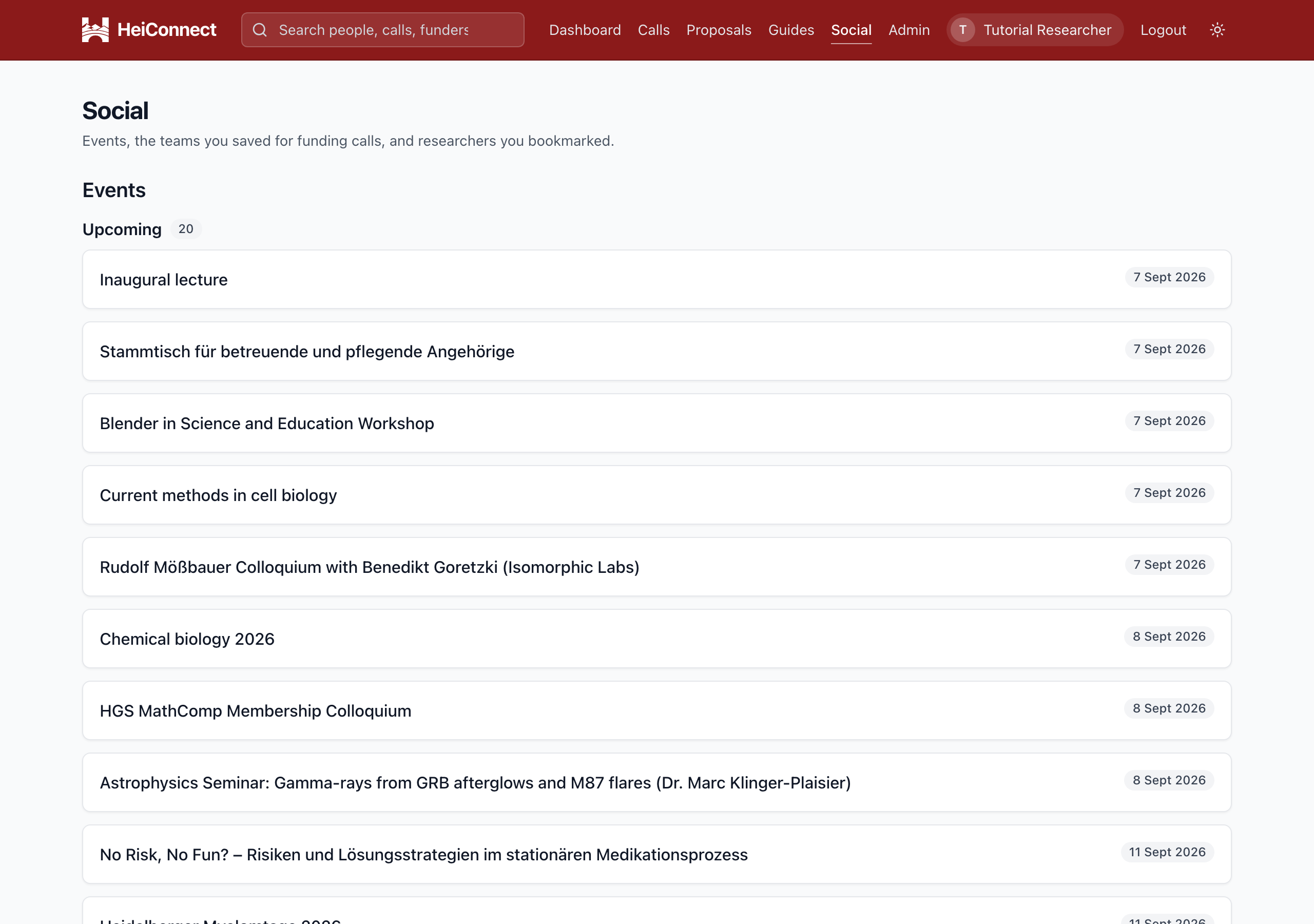 Saved teams and bookmarked researchers.
A week with HeiConnect
A postdoc looking for her own salary. Monday's digest, which she switched on in her first week, names two fellowships that close in three months. She opens both, saves one, and on Ranked for you answers "my own salary", "in the next few months", "roughly one position for a few years". The list reorders; a mobility fellowship she had not heard of is now third. She starts a proposal from it, opens the launcher and runs orient and plan with her assistant, which reads the call and her profile and leaves a plan in the notes. Over the week she drafts the spine section by section. Friday she runs pre-flight, exports the Word file, and sends it to her research office with two weeks to spare.
A group leader chasing a project grant. He knows the instrument; what he lacks is the consortium. The call page's team finder lists complementary partners with him as lead, one from a faculty he never works with. He reaches out from the card, bookmarks two more, and saves the team under Social. In the workspace the Facts panel pins the budget and duration everyone keeps misquoting; the References panel takes the group's bibliography; a collaborator writes the work-package section while he does the budget. A panel review session lists what a reviewer would flag. The e-mail draft under Submit goes to the research office, who send it.
Privacy and control
- Researcher pages are built from public records. Anyone can opt out of appearing at all, and the opt-out survives every data refresh.
- Your account data is stored apart from the research data. Export or delete it from your profile at any time.
- "Don't show again" choices and hidden calls are yours to undo, from your profile and the calls page.
- Everything runs on servers in Germany. HeiConnect makes no calls to any AI provider; what an assistant sees is governed by your account with that provider, or stays on your machine.
The full privacy notice lists the legal bases and your rights.
Where to get help
- Support offices: the research-support offices at Heidelberg institutions, checked by hand, for eligibility, budgets and signatures.
- The Report an issue button on every call and researcher page reaches us with that page attached.
- Anything else: the contact address on the About page.